These updates from Microsoft fix serious security issues, including three that attackers are already exploiting to take control of Windows systems.
In total, the security update resolves 57 Microsoft security vulnerabilities. Microsoft isn’t releasing new features for Windows 10 anymore, so Windows 10 users will only see security updates and fixes for bugs introduced by previous security updates.
What’s been fixed
Microsoft releases important security updates on the second Tuesday of every month—known as “Patch Tuesday.” This month’s patches fix critical flaws in Windows 10, Windows 11, Windows Server, Office, and related services.
There are three zero‑days: CVE‑2025‑62221 is an actively exploited privilege‑escalation bug in the Windows Cloud Files Mini Filter Driver. Two are publicly disclosed flaws: CVE-2025-64671, which is a GitHub Copilot for JetBrains remote code execution (RCE) vulnerability, and CVE‑2025‑54100, an RCE issue in Windows PowerShell.
PowerShell received some extra attention, as from now on users will be warned whenever the Invoke‑WebRequest command fetches web pages without safe parameters.
The warning is to prevent accidental script execution from web content. It highlights the risk that script code embedded in a downloaded page might run during parsing, and recommends using the -UseBasicParsing switch to avoid running any page scripts.
There is no explicit statement from Microsoft tying the new Invoke‑WebRequest warning directly to ClickFix, but it clearly addresses the abuse pattern that ClickFix and similar campaigns rely on: tricking users into running web‑fetched PowerShell code without understanding what it does.
How to apply fixes and check you’re protected
These updates fix security problems and keep your Windows PC protected. Here’s how to make sure you’re up to date:
1. Open Settings
- Click the Start button (the Windows logo at the bottom left of your screen).
- Click on Settings (it looks like a little gear).
2. Go to Windows Update
- In the Settings window, select Windows Update (usually at the bottom of the menu on the left).
3. Check for updates
- Click the button that says Check for updates.
- Windows will search for the latest Patch Tuesday updates.
- If you have selected automatic updates earlier, you may see this under Update history:
- Or you may see a Restart required message, which means all you have to do is restart your system and you’re done updating.
- If not, continue with the steps below.
4. Download and Install
- If updates are found, they’ll start downloading right away. Once complete, you’ll see a button that says Install or Restart now.
- Click Install if needed and follow any prompts. Your computer will usually need a restart to finish the update. If it does, click Restart now.
5. Double-check you’re up to date
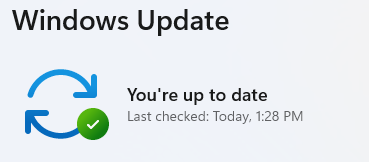
- After restarting, go back to Windows Update and check again. If it says You’re up to date, you’re all set!
We don’t just report on threats—we remove them
Cybersecurity risks should never spread beyond a headline. Keep threats off your devices by downloading Malwarebytes today.