Your Google Search history provides one of the most detailed windows into your private life, and I know this because when I looked at my own search history last year, I was overwhelmed by the information buried within.
Across just 18 months, Google tracked the 8,079 searches I made and the 3,050 websites I visited because of those searches. That included my late-night perusal of WebMD because of medical symptoms I’d looked up just seconds before, my tour of Goodwill donation sites as I searched for where to drop off clothes ahead of an upcoming move, and my ironically tracked visit to a Reddit thread titled “How do I delete most, if not all, of my info off of the Internet?” (One answer I learned: Don’t use Google Search.)
Google tracked my every question, concern, and flight of fancy—almost literally. On just one day in August 2025, Google recorded the seven flight searches I made on Google Flights and the six hotel searches I made on Google Travel.
Google also recorded the many questions and requests I made when researching topics for the Lock and Code podcast, which I host. And while all of that Google data made for an interesting investigation into what Google knows about me (which you can listen to below), it also made it clear that more people should know how to access this same information.
For most Google users, if Web & App Activity is turned on, Google is saving what they look up, what time they looked it up, and what websites they clicked on as a result. There are ways to turn that data tracking off, but the first step is to know where to look.
Here’s how to do that.
How to find your Google Search history
You can start by opening your web browser and signing into Google’s centralized hub for your data online at myactivity.google.com.
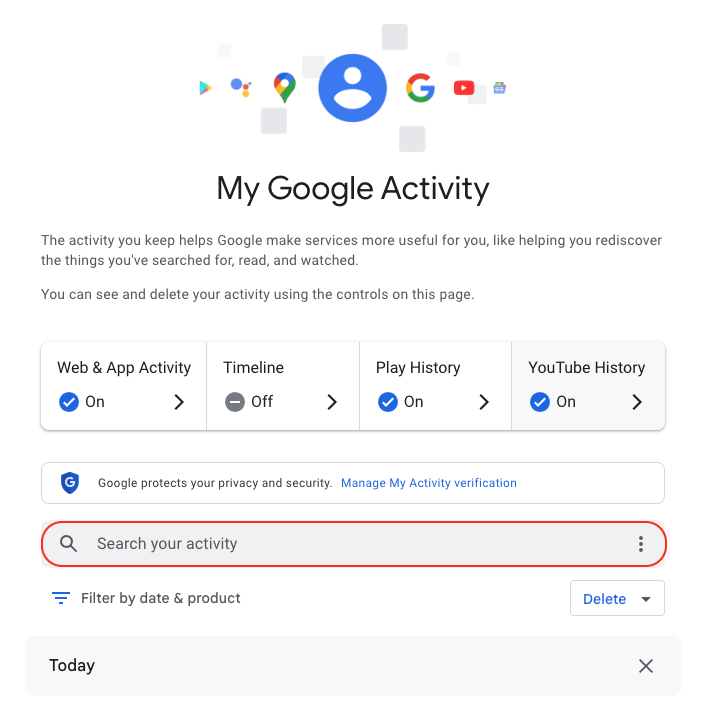
Once logged in, you’ll see the above welcome screen with quick settings that you can change, if you want to. Those settings are different for some users, but may include:
- Web & App Activity
- Timeline
- Play History
- YouTube History
Further down on the page, you can browse through your Google Search history. (Our screenshot gallery below can help walk you through the steps.)
- First, look for the search bar in the welcome screen that says Search your activity.
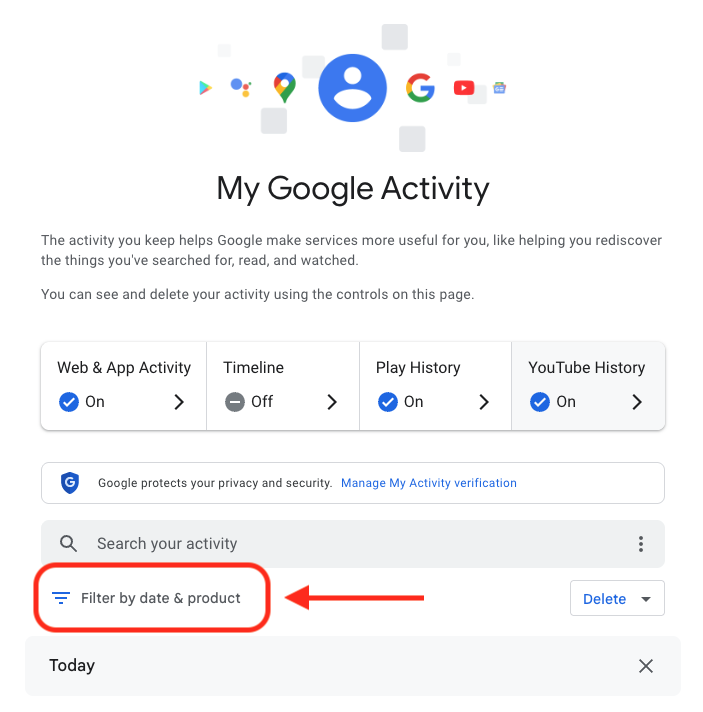
- Right below, you will find the words Filter by date & product. These words are clickable. Click them.
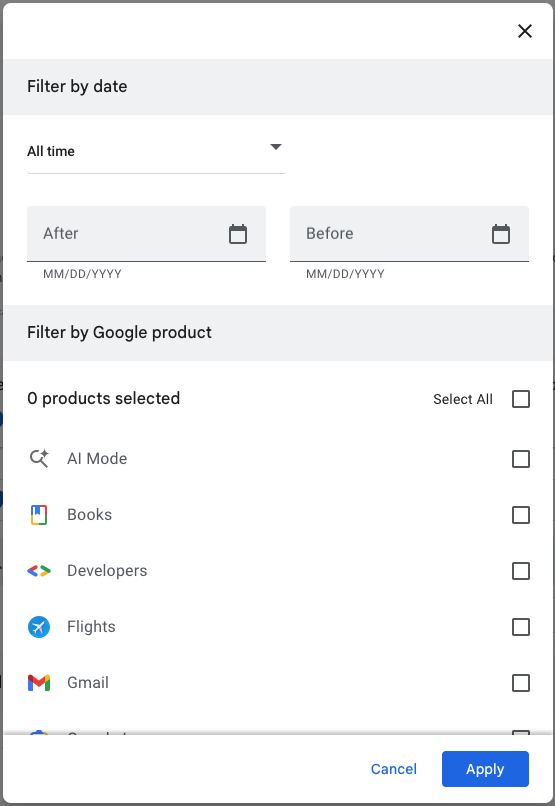
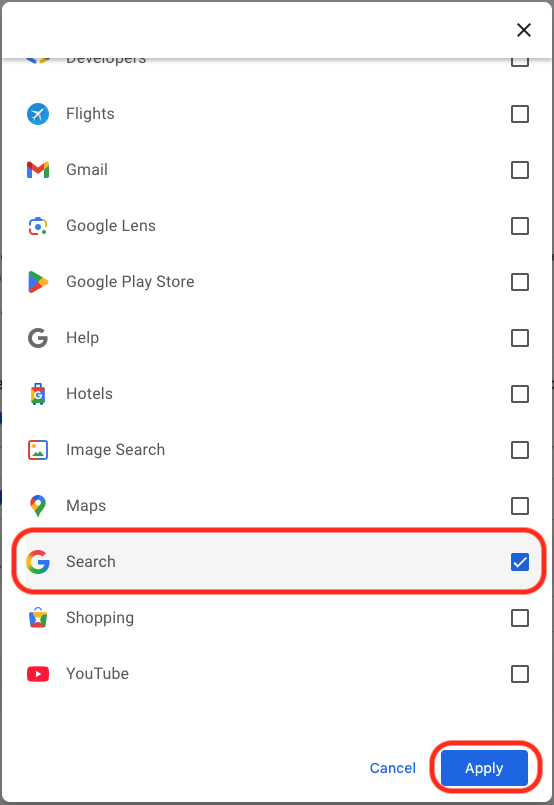
- Once you’ve clicked Filter by date & product, you’ll see a pop-up menu where you can look through your Google activity by date or product. Instead of focusing on the date, scroll down through the list of Google products and check the box for Google Search.
- Press Apply.

Find the search bar in the My Google Activity homepage Click on the words “Filter by date & product” 
Scroll down through the list of items until you find Google Search 
Click on the Google Search checkbox and click “Apply”
After you press Apply, you’ll be taken to a webpage that lists your Google Search history in reverse chronological order, showing you your most recent activity first. As you scroll down, you can find older activity. You can also use the search bar at the top of the page to look for individual pieces of activity, like a search or series of searches that you previously made.
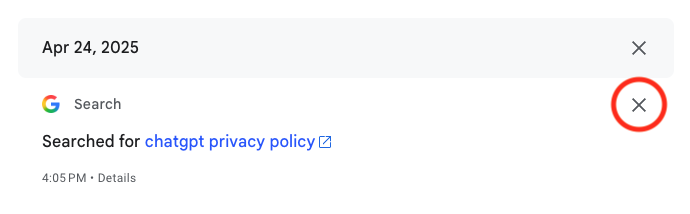
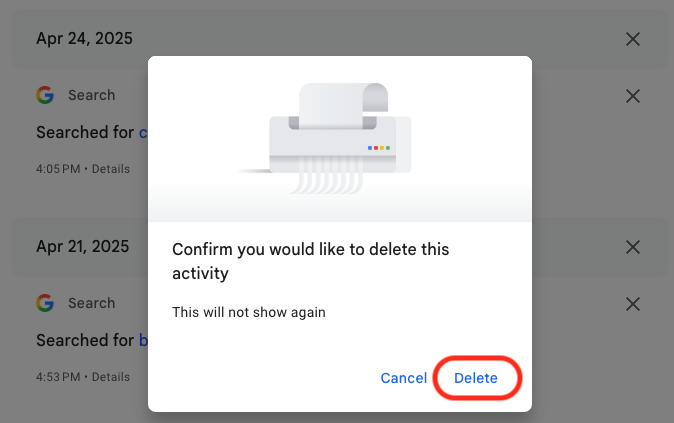
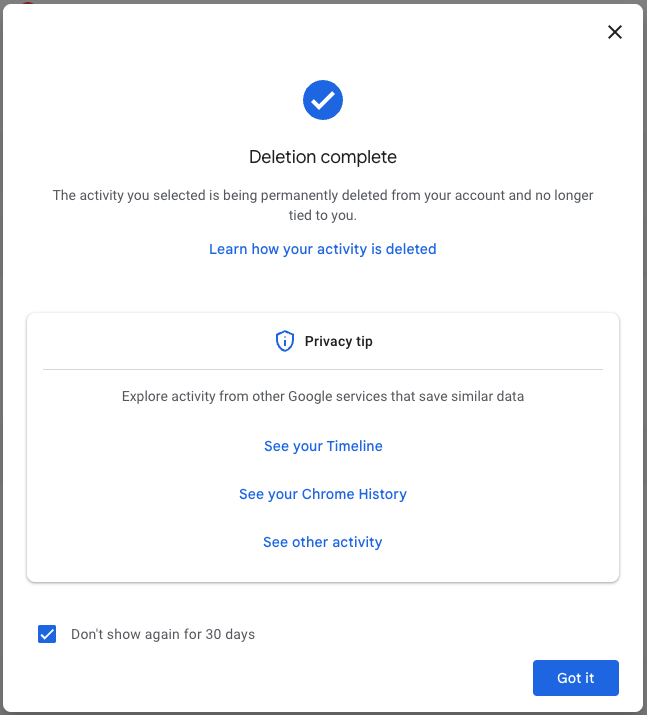
From here, you can also delete individual Google Search entries so that Google no longer stores that data. This will only apply to the individual search you made.

You can delete individual searches by clicking the “X” button in the top right corner of each search record 
Confirm your deletion by pressing “Delete” 
Your search is now no longer tied to your overall Google activity
If you want to better protect your privacy, making targeted deletions from your Google Search history is a difficult, lengthy, and imperfect method. Instead, you can simply tell Google to stop recording any of your searches from now on.
How to turn off Google Search history
There’s a simple way to instruct Google to stop saving your online searches to your Google Account, and it takes just a few clicks. Follow the instructions below, along with the image gallery, for guidance.
- Go to your My Google Activity homepage (this is the same page you saw when first signing into myactivity.google.com)
- Click on that quick control button we saw earlier: Web & App Activity
- From here, you will see a new screen with the title Activity Controls
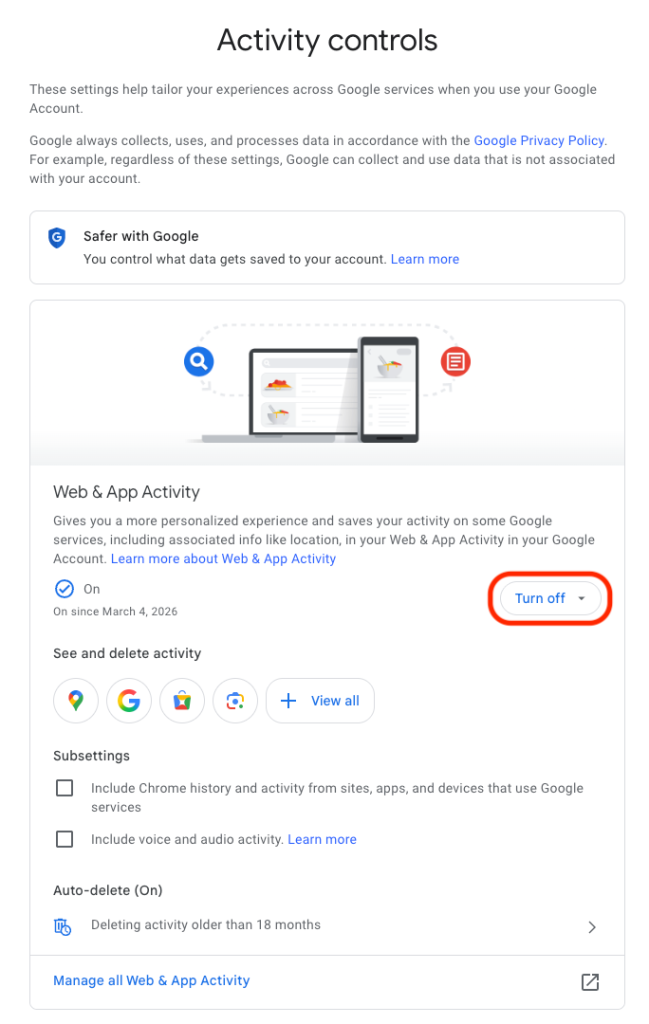
- Find the button that says Turn off and click it
- Choose between Turn off and Turn off and delete activity

Find the “Turn off” button from the Activity Controls webpage 
You can choose one of two options for turning off your data 
With one click, you can stop Google from recording your activity
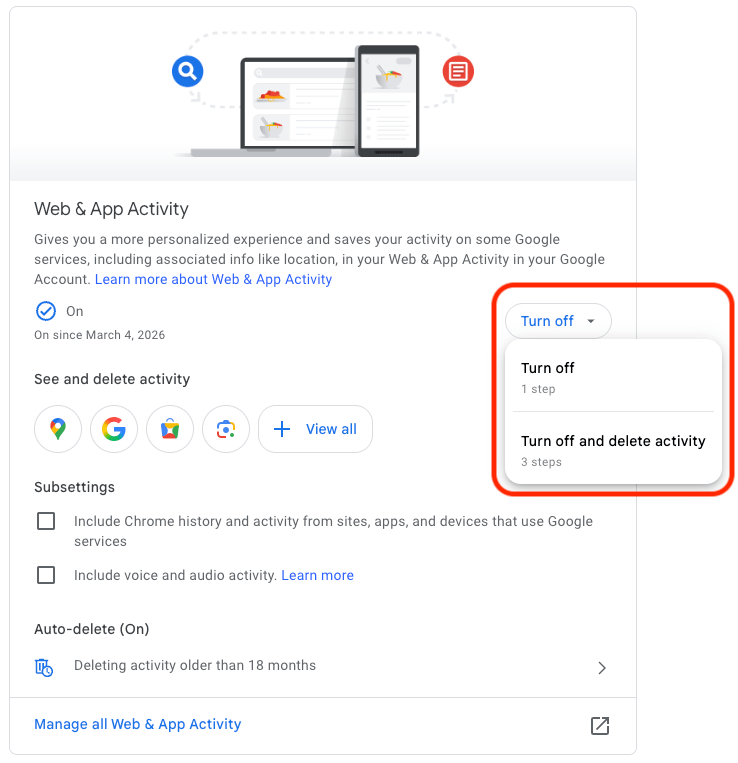
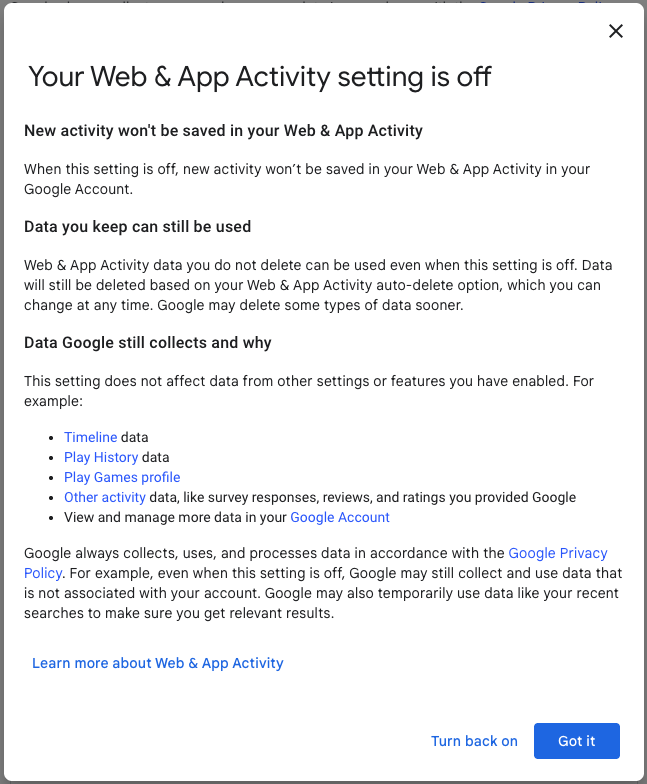
If you selected Turn off, you’re done. Google will no longer save your Google Searches as part of your overall Google profile activity. This option means that Google still has your prior searches recorded, though. So, if you want, you can choose the second option, Turn off and delete activity.
When you select that option, Google will walk you through additional steps to choose what types of data you want erased, such as past activity tied to Google Search, Maps, Ads, Image Search, Google Play Store, Help and other services. All of these options reveal just how many products and pipelines Google has built to vacuum up your data.
Don’t be overwhelmed, though. Go through the list at your own pace and start making decisions about your data that are right for you.
We don’t just report on data privacy—we help you remove your personal information
Cybersecurity risks should never spread beyond a headline. With Malwarebytes Personal Data Remover, you can scan to find out which sites are exposing your personal information, and then delete that sensitive data from the internet.