Scammers have found a way to abuse legitimate Apple account notification emails to trick targets into calling fake tech support numbers.
According to a report from BleepingComputer, scammers create an Apple account and insert a phishing message into the personal information fields, then modify the account so that Apple sends a genuine security alert about the change to the target.
BleepingComputer was able to replicate the attack.
The attacker creates an Apple ID they control, then stuffs the phishing message into the personal information fields (first name, last name, possibly address), splitting it across fields because they will not fit into just one.
To launch the phish, the attacker changes something benign on their specially created Apple account, such as shipping information, which causes Apple’s systems to send a “Your Apple account was updated” security email.
While the original alert is addressed to the attacker’s iCloud email, they are then able to redistribute it to a wider victim list, for example through a mailing list.
In the copy the targets receive, the email headers still show a legitimate Apple sender, and the presence of the attacker’s iCloud address can even make it look like “someone else” has gained access to the account.
Because Apple includes those user-supplied fields in the security email, the phishing text is delivered inside a legitimate message sent from Apple’s own infrastructure.
This method, called call-back phishing, filters out suspicious users, so the scammers can focus on the people who fell for the first part.
The emails come from a legitimate source, sail through every security filter because of that, and look convincing enough to scare the receiver into thinking someone spent $899 from their PayPal account.
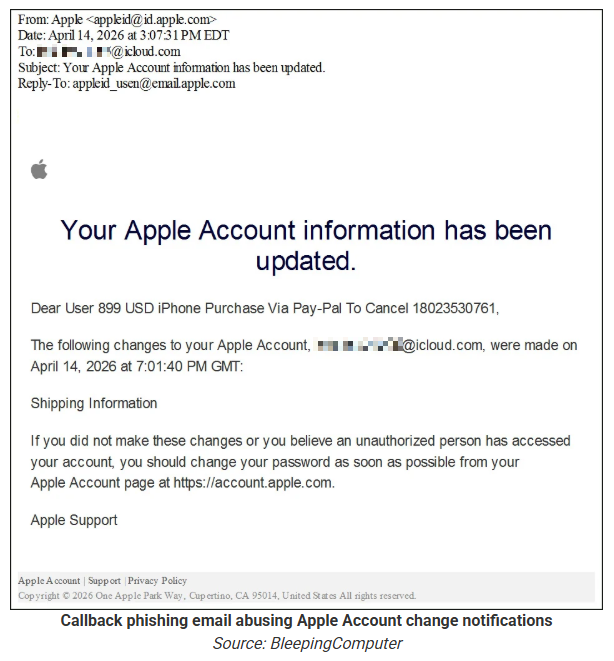
But the structure of the email does not make sense.
“Dear User” is immediately followed by the scam message where your name should have been. The header says it’s about account information rather than a purchase. And the iCloud account does not belong to the recipient. So, once you know how it’s done, they’re not impossible to spot. Which is why we wrote this blog.
And when in doubt, you can always ask Malwarebytes Scam Guard.

Scam or legit? Scam Guard knows.
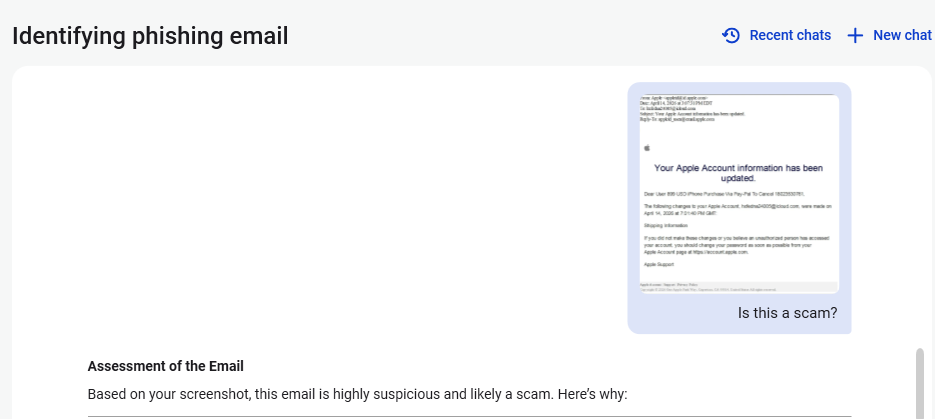
Scam Guard identified the screenshot as a scam and guides users through the next steps.
Scams like these work, because many users still view phone calls as more trustworthy than email, especially if the email itself passed all the usual technical authenticity checks and they initiated the call themselves.
How to stay safe
Tech support scammers will try to convince callers to install some kind of remote desktop application to steal data from your computer, or ask for financial details so they can steal your money.
To stay safe from these scammers:
- Be wary of unexpected alerts about high‑value purchases you do not recognize. They are suspicious even if they come from a real domain.
- Never call a number sent to you by unsolicited means or even found in sponsored search results.
- Carefully read emails and text messages, even if they come form trustworthy addresses. Does the email make sense from a structural and linguistic point of view?
- If someone claiming to be support for a legitimate company asks for remote access or payment details during a call, hang up and contact the company through official channels.
- Use Malwarebytes Scam Guard to analyze any kind of message that alarms you or urges you to take immediate action.
Something feel off? Check it before you click.
Malwarebytes Scam Guard helps you analyze suspicious links, texts, and screenshots instantly.
Available with Malwarebytes Premium Security for all your devices, and in the Malwarebytes app for iOS and Android.
Try it free →